Changelog
Follow new updates and improvements to Duler.
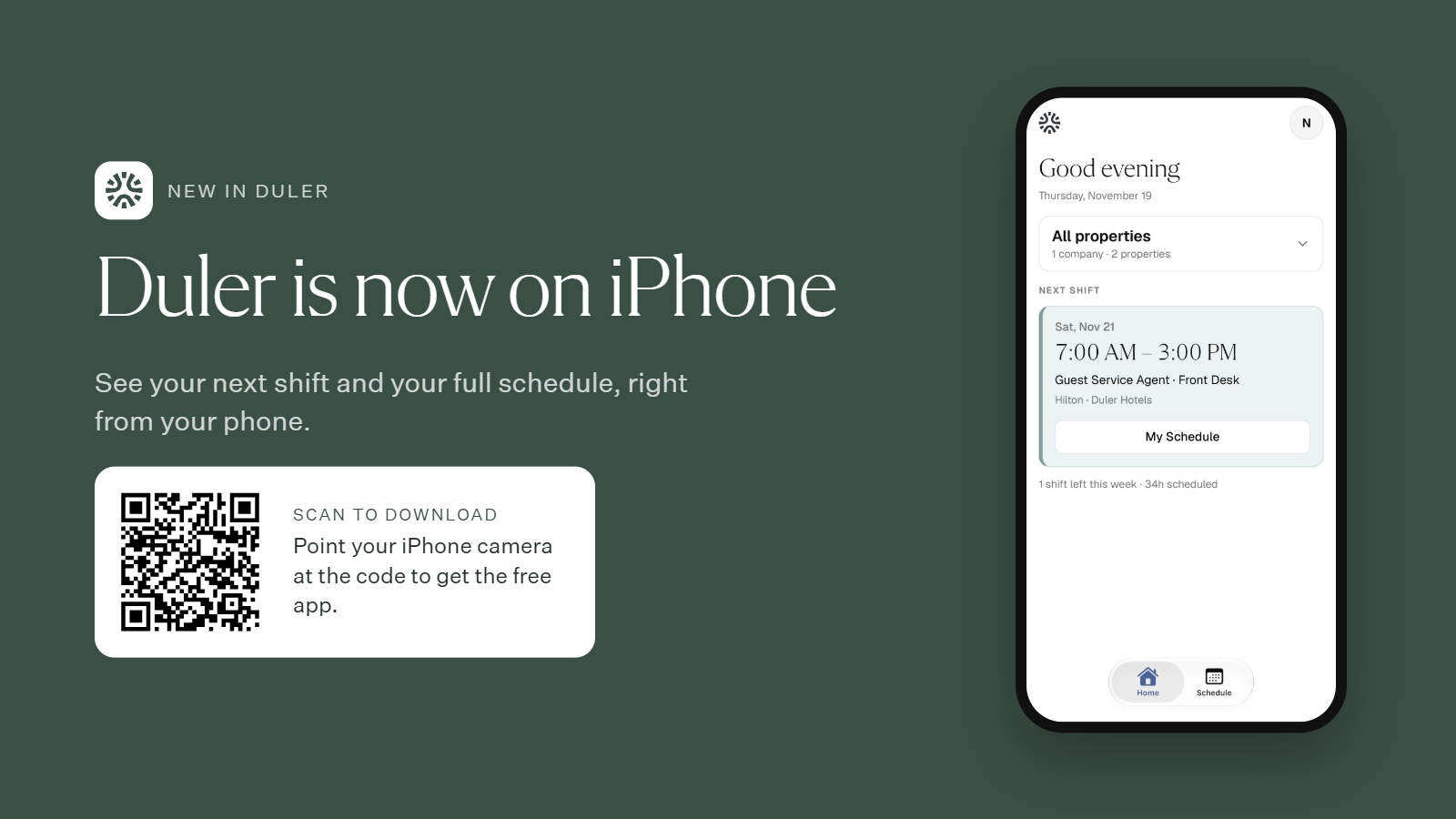
You can now check your schedule from the Duler app for iPhone. Open it to see your next shift at a glance: date, time, position, and property. Your full schedule is just taps away!
Get the app
Scan the QR code with your iPhone camera.
Download the free Duler app.
Sign in with your Duler account.
What’s next
Android: the Android app is coming very soon.
More features: we’re adding more to the app, so keep an eye out for updates.
Questions? Reach out to your Duler contact anytime.
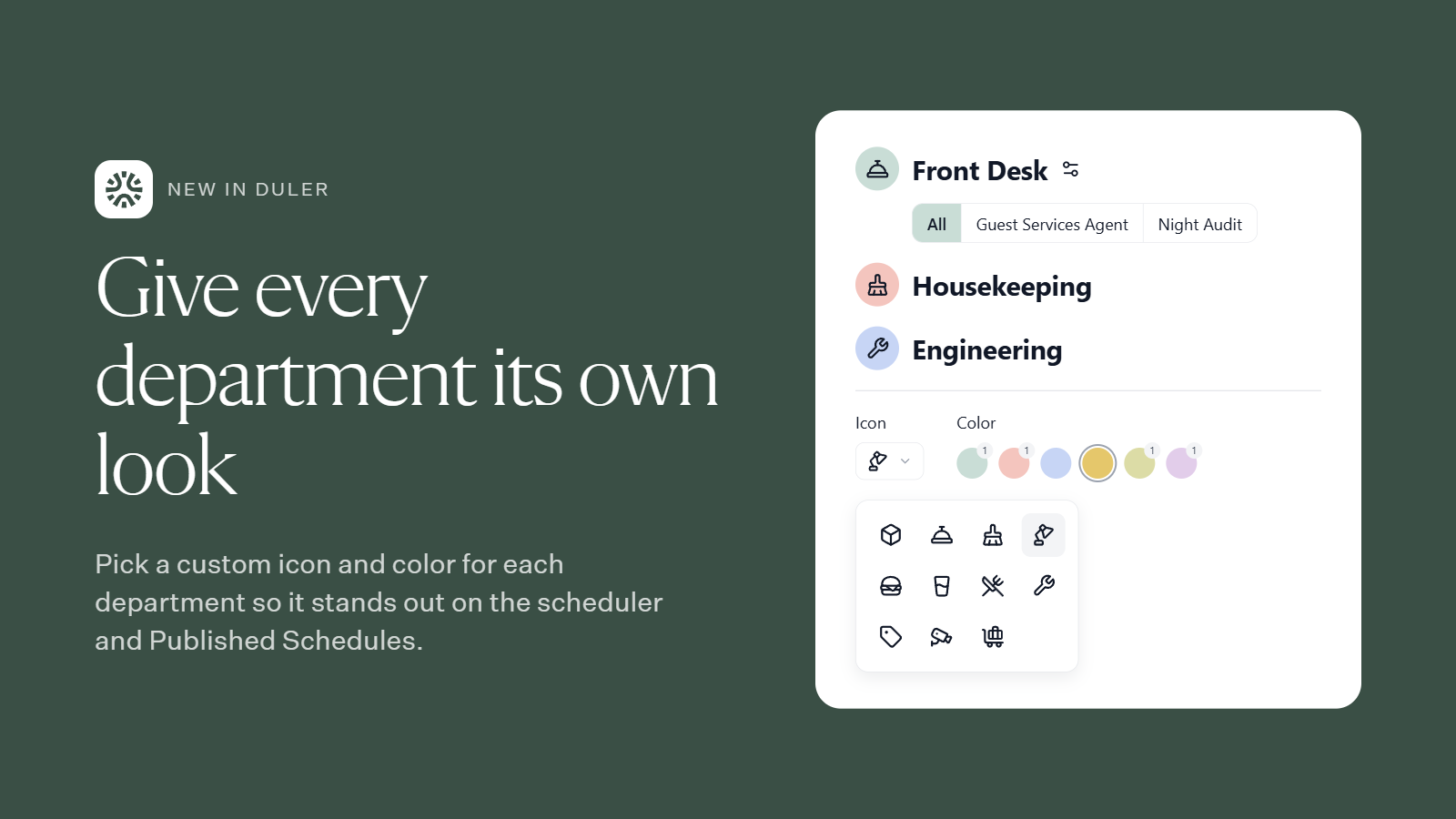
You can now pick a custom icon and color for each department. That makes it easier for managers and Team Members to tell departments apart at a glance.
Where you’ll see it
Scheduler: each department’s icon and color appear in its header, so you can quickly find the team you’re scheduling.
Published Schedules: Team Members can spot their department and tell it apart from others.
How to set it up
On the left side menu or in the Scheduler, locate the department you wish to customize and select the settings icon. Once open, navigate to settings, click edit, and select your icon and color!
Questions? Reach out to your Duler contact anytime.
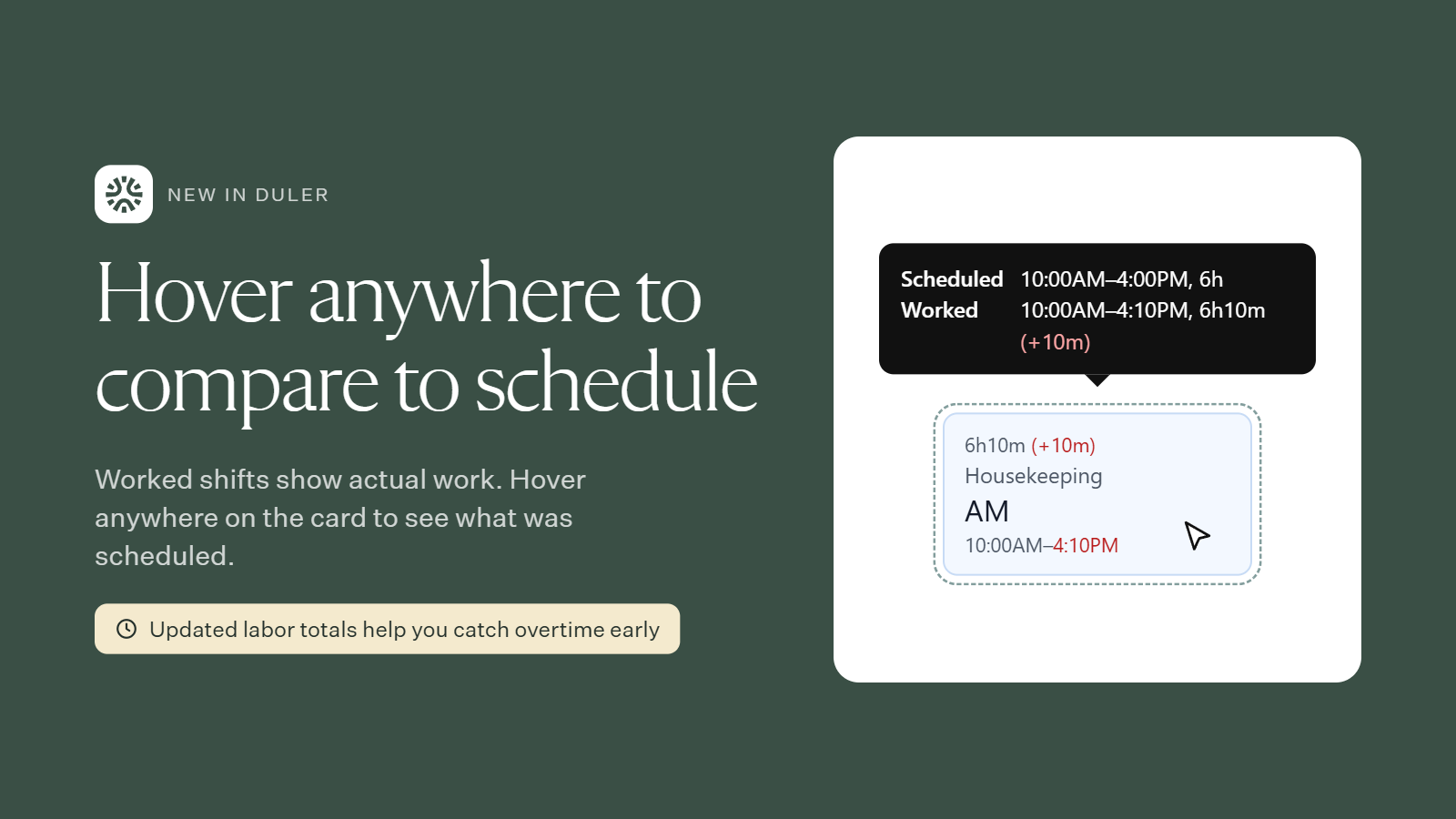
Worked shift cards show actual work by default: clock-in, clock-out and total time worked, with any difference highlighted (for example, 6h10m (+10m)).
Now you can hover anywhere on a blue worked shift card to see the scheduled time next to the worked time. Before, this only worked when you hovered over the hours.
Stay ahead of overtime
Labor hour totals update as shifts are worked. A few extra minutes on several shifts can add up, so you can spot overages early and adjust upcoming shifts before they push someone into unexpected overtime.
Questions? Reach out to your Duler contact anytime.
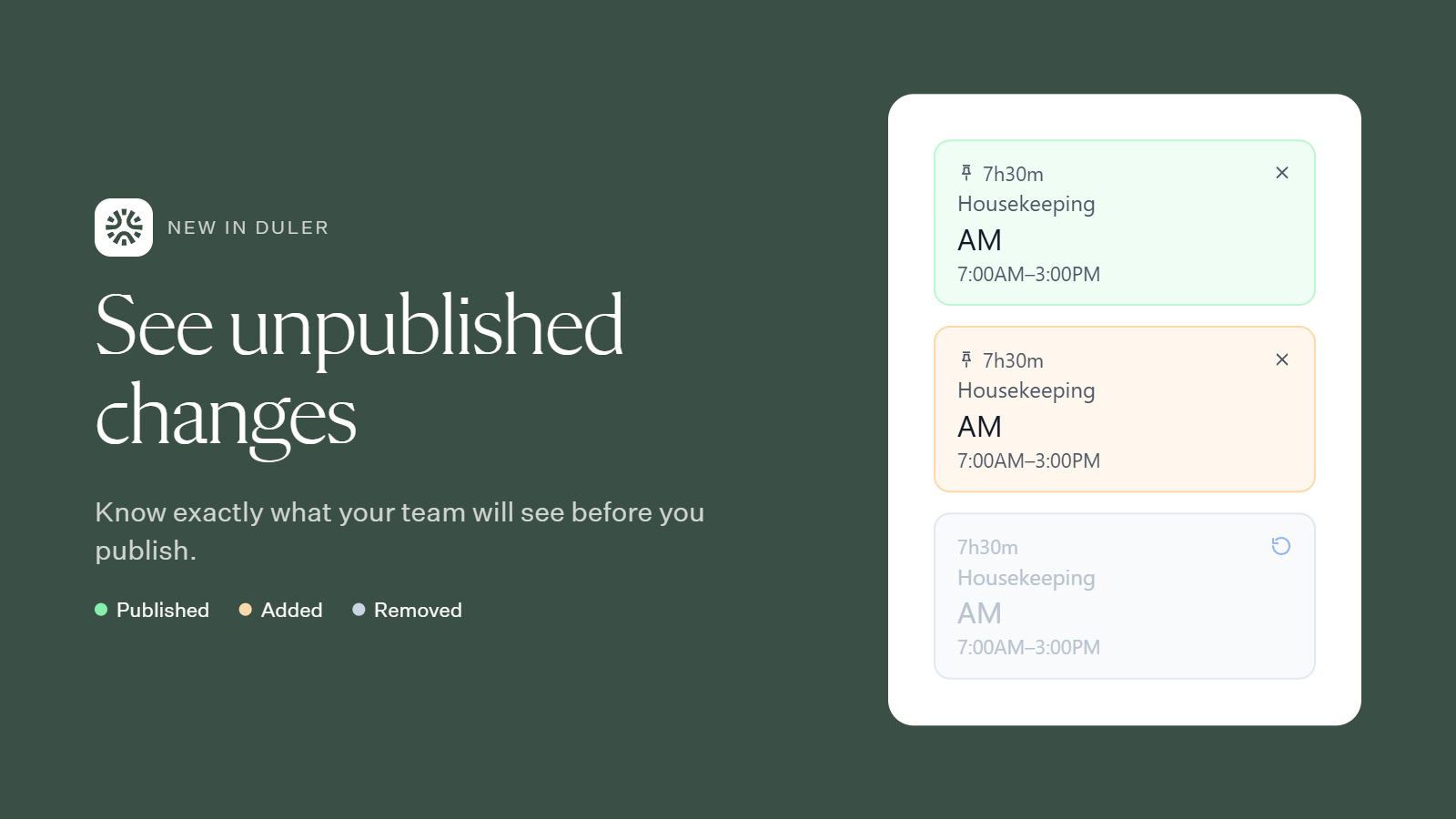
The schedule now shows every change you’ve made since your last publish. You can see exactly what your team will see before you hit Publish.
What the colors mean
🟩 Green – Published: Live on the schedule your team sees now.
🟧 Orange – Added: A new shift that isn’t published yet. Your team won’t see it until you publish.
⬜ Grey – Removed: A published shift you’ve deleted. It stays live until you publish. Click the undo icon to restore it.
When you’re ready, publish. Added shifts go live, removed shifts drop off, and everything turns green.
Questions? Reach out to your Duler contact anytime.